Merge Conflict Guide
A guide written for handling merge conflicts in game jams, especially for use with games made with Game Maker: Studio.
Scenario: There is a merge conflict
You can see this either from Github (when you try to merge a PR and it fails), or from your git client (when you try to rebase / merge to the main branch).

When you enter a merge conflict, you’ll enter a merging state. You’ll need to go into your repository folder in a text editor to resolve the merge conflict.
This guide assumes you have VS Code, since it has pretty good tools for looking at merge conflicts.
How to determine where the merge conflicts are
In a merge conflict, individual files were edited in multiple commits. Merge conflict markers are in the format:
<<<<<<< HEAD:file.txt
Hello world
=======
Goodbye
>>>>>>> 77976da35a11db4580b80ae27e8d65caf5208086:file.txt
All content between <<<<<<< and ======= are for the current change. Everything between ======= and >>>>>>> are the incoming change. I usually forget which is which, but it should tell you which one comes from the main branch, and which one is your local branch after the <> symbols.
VS Code has tools to tell you exactly where those merge conflict markers are. You can see this by looking into the git tab of the editor and seeing which files are in the Merge Files section of the sidebar:
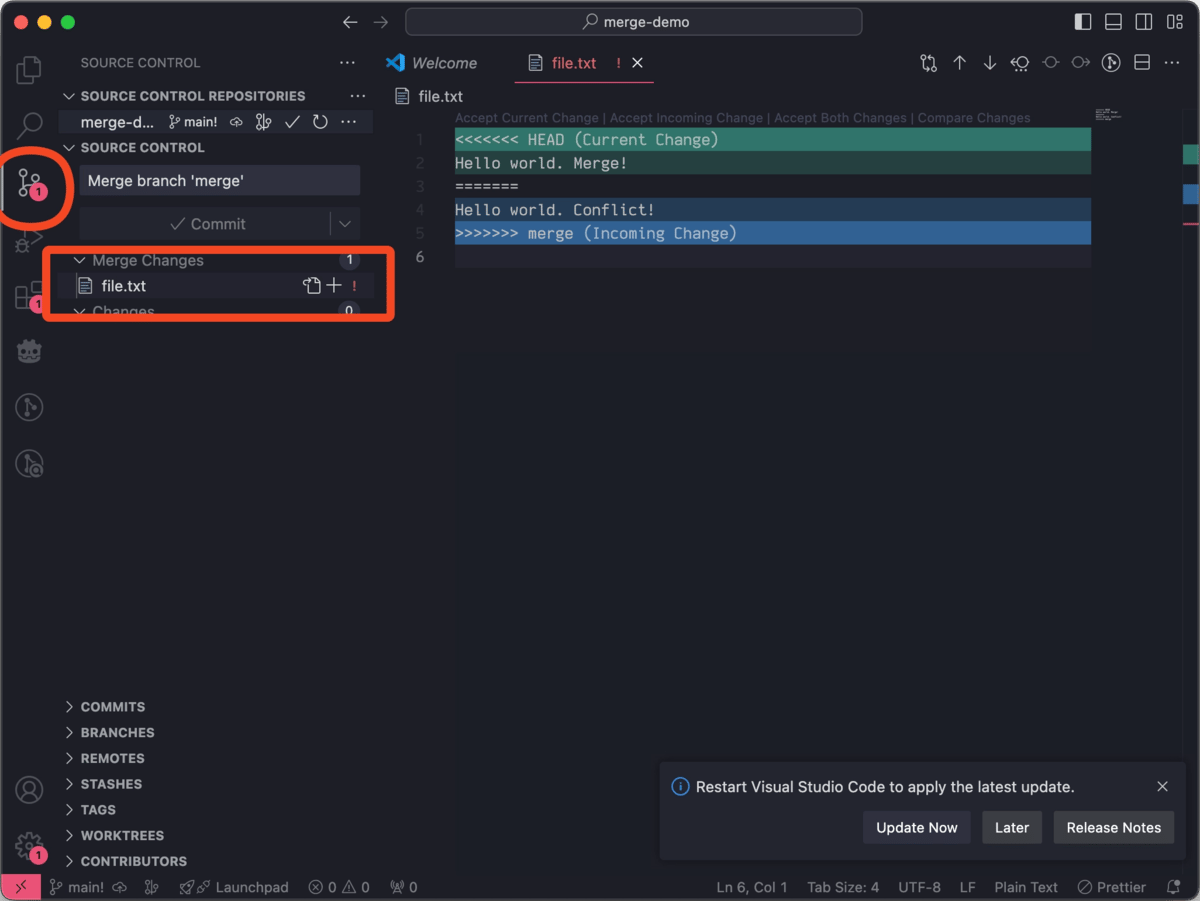
Resolving conflicts per file
After you get to the file(s) with the conflict markers, there are a few ways you can resolve the merge for each file
Manually / with VS Code tools
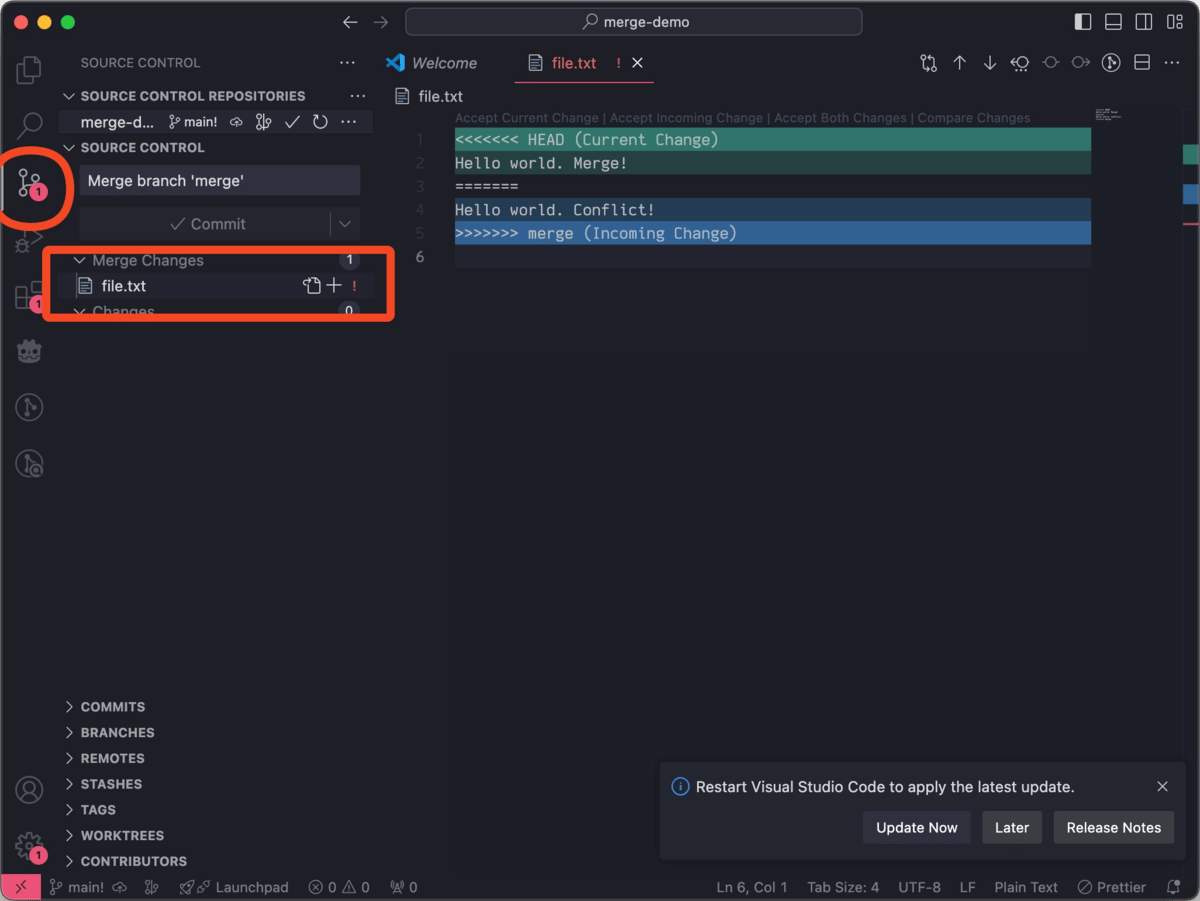
VS Code highlights all of the merge conflicts in that light green or blue (may be different with different themes), and you can go through each of them and delete the merge conflict markers, as well as figure out what inside of them you can keep.
This is best for text or code, where all the contents are human-readable and you have a good idea of what is needed to get it working.
VS code also has tiiiny little buttons above each merge conflict marker, which you can use to ‘accept’ one or both of the changes. This will automatically remove the merge conflict markers, and keep only the version you decided to accept.
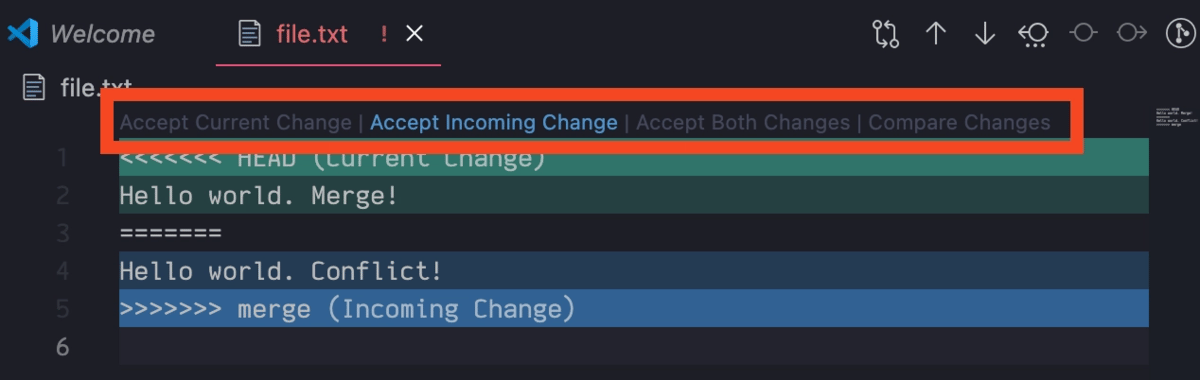
After you remove the merge conflict markers, you should run the game and test to make sure it works!
Replace the file wholesale with one version or another
For binary files or files that are not human readable, manually editing might not be reasonable or work. In that case, you probably want to take the two versions of the file, and select one of them to be the right one.
The way I know how to do this is with the command line. A graphical git client might also have these commands, but I don’t know where.
This one will keep the version you are working on:
git checkout --ours <path_to_binary_file>
This one will keep the version that you’re trying to merge into:
git checkout --theirs <path_to_binary_file>
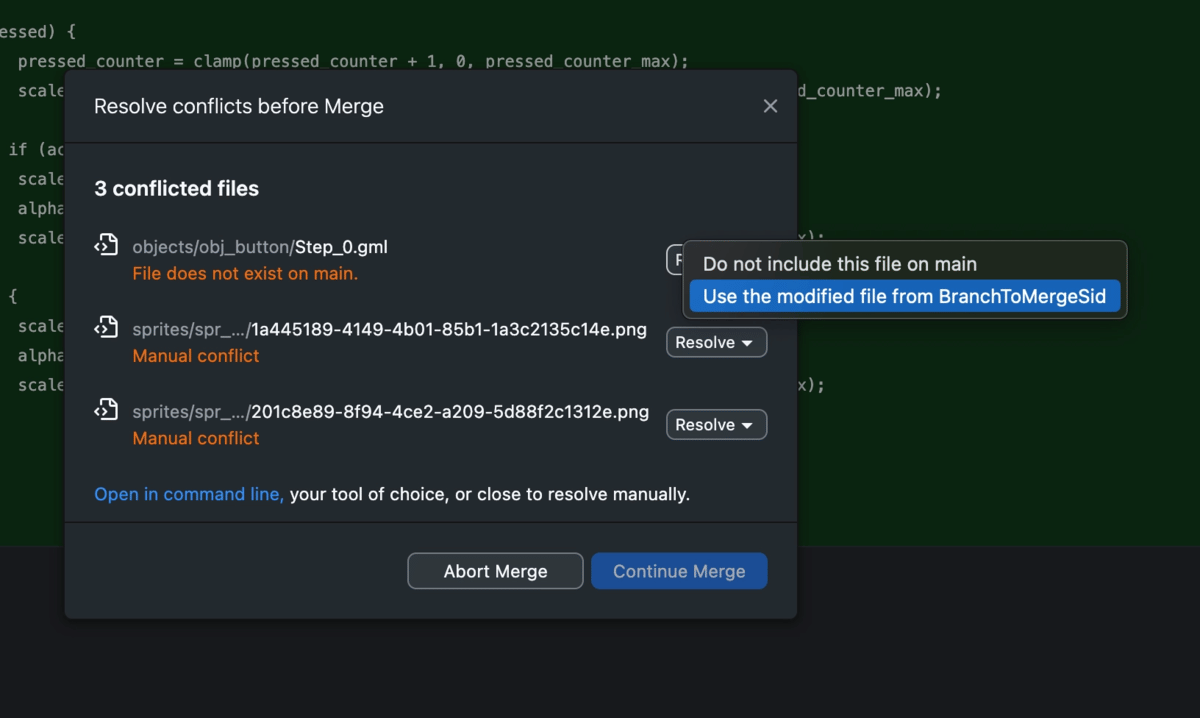
Github Desktop has pretty good interfaces for dealing with whole-file merges, which you can access via a tiny link when you have merge conflicts available:
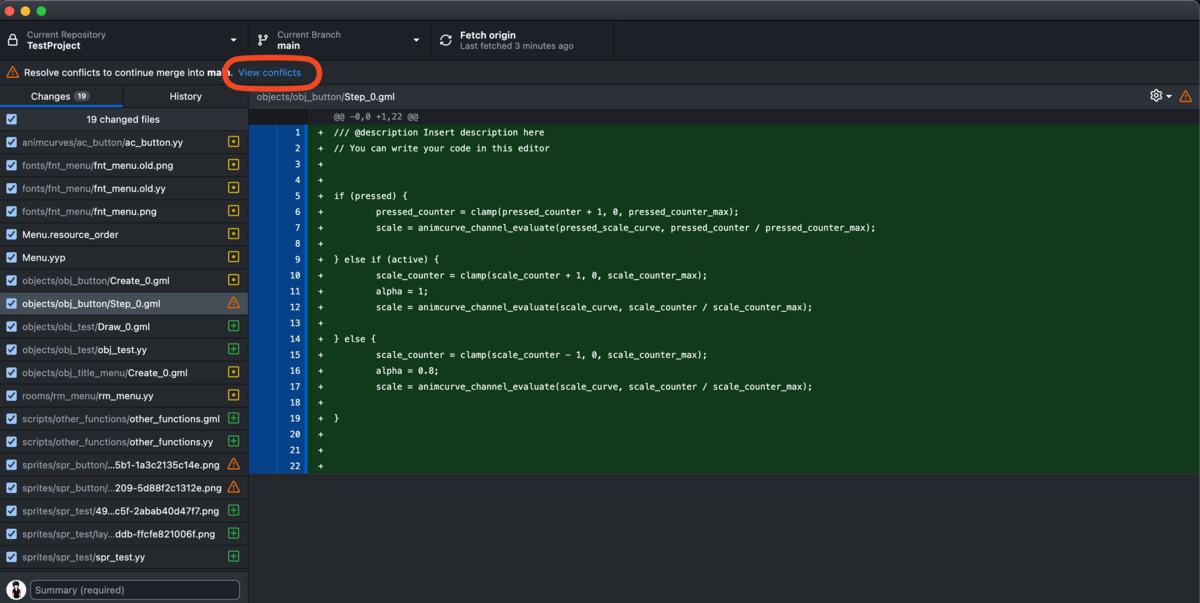
Note that VS Code is still recommended for line-by-line merge conflict resolution.
Special merges
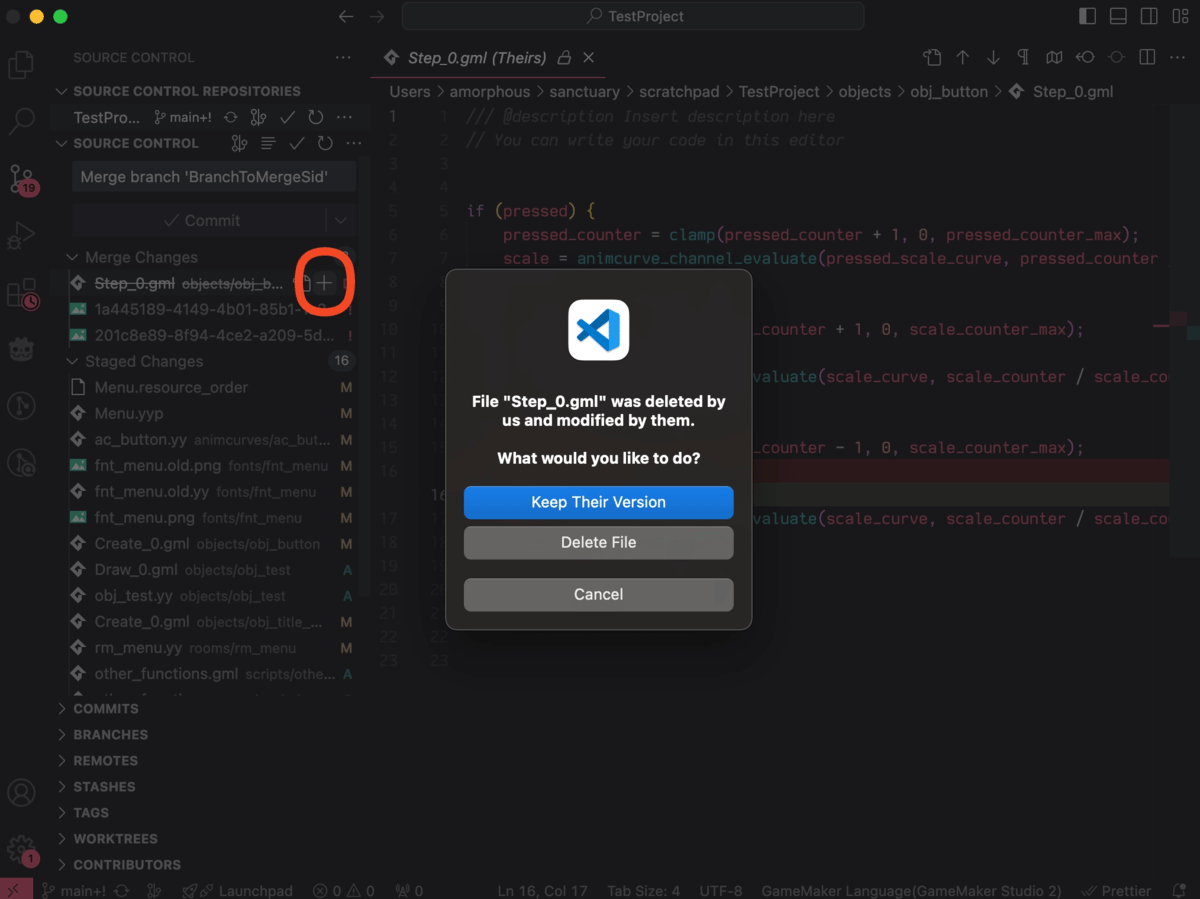
One person deleted the file, another person edited
This can happen if two branches A and B are created from the same commit on main, and A deletes a file and B edits the same file before they are merged. Both changes are newer than main, so git doesn’t know whether the file should be deleted or edited in the final commit.
This hopefully won’t happen in a project, but this scenario will require different behavior since VS Code’s tools for line-by-line commits won’t work.
In VS Code, the merge editor view will be read-only in this case. You can resolve this conflict by clicking the + next to the merge file, and making a choice with the following dialogue:
You can also merge via Github Desktop’s UI:
Merge conflict in images / sound assets
This only happens if two people saved two different assets into the same path. You’ll need to do a whole file merge.
Merge conflict in code
Do this manually by hand.
Merge conflict in yyp files
I tend to do this manually, since these are technically text files and can be opened in a text editor.
However…I don’t really get them, so in practice I tend to do this similar to the solution where you replace the whole file, and just take the latest version, save that, and see if Game Maker Studio still opens.
Note that you might have to go back into Game Maker and manually link up assets to each other then, since the yyp file contains those links and they might’ve been clobbered.
Merge conflict in the project file
Replace wholesale with the newest version.
Finalizing the Merge
Do this after all the conflicts have been fixed!
- Verify that the game runs (and make any minimal changes needed to get it running - some things might have gotten wonky especially if you needed to merge whole files)
- Always test the game after you fix all the conflicts! Testing at any point while merge conflict markers are still there will break and often with really weird error messages.
- Run
git add -Ato add all the fixed merge conflicts to the staging. - The next command depends on how you got into the merge conflict to begin with:
- Were you trying to do a
git merge? Rungit merge --continue - Were you trying to do a rebase? (Probably not, if you were you likely are very familiar with
gitalready. Then rungit rebase --continue
- Were you trying to do a
- You should be done!
Oh no something went wrong
Got your git state into an absolute mess? This is not ideal if you’ve already done a lot of work, but you can also revert all your changes and start over if it really got blown up.
If you were trying to do a merge, run git merge --abort. Rebase also has the same option.
Other Git Tips
Repository got into a bad state but I’m not merging
Two ways to deal with this:
git stash
will sort of save your changes in a temporary ‘stash’ area, and you can run
git stash pop
to get them back (but I usually just let them live there until I clear it all out, since I use it more often to revert changes).
git reset --hard HEAD
will forcibly revert your repository to the same state as the version on the branch. This is a somewhat dangerous thing to do normally since it’ll lose all the work since the last commit, but sometimes you want that!